This guide explains how to create saved searches using filters, apply saved search criteria, and remove saved searches when they are no longer needed.
How to Create a Saved Search
Step 1: Open Filters
Click on the Filter button.
A sidebar will open from the right side of the screen.
Step 2: Add Filter Criteria

In the sidebar:
- Select a field under Filter by (e.g., First Name, Last Name)
- Choose a condition under Matches (e.g., is exactly, contains)
- Enter the required value
Click + Add Filter to include multiple conditions.
Step 3: Set Filter Logic
Choose how filters should work together:
- AND → All conditions must be met
- OR → Any one condition can be met
Step 4: Save the Search
Once your filters are set:
- Click Save Search
- Enter a name for your saved search in the pop-up
- Click Save
Your saved search will be automatically applied and will appear in the Saved Searches section.
How to Apply or Clear a Saved Search
- To apply: Select a saved search from the Saved Searches list
- To clear: Click Clear Filter next to the saved searches
How to Edit a Saved Search
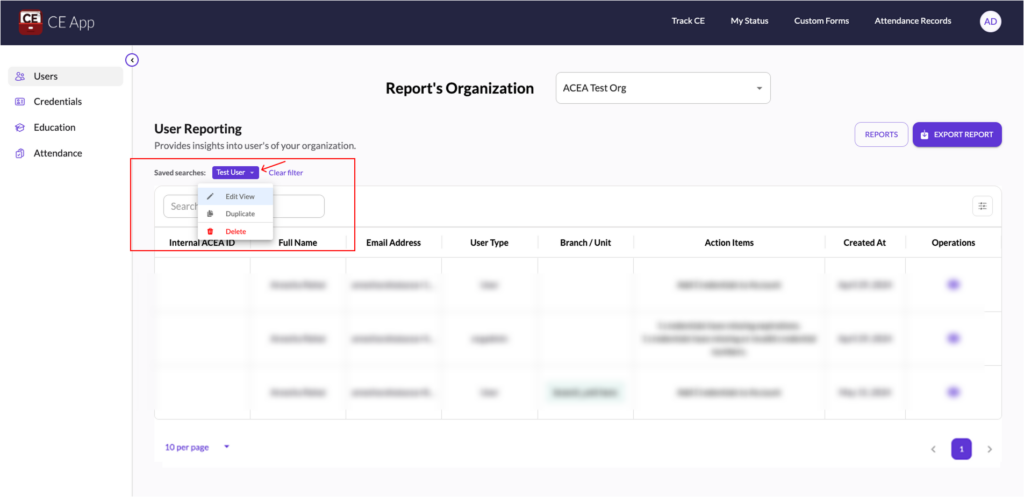
Step 1: Open the Saved Search Menu
In the Saved Searches section, locate your saved search.
Click on the dropdown icon next to the saved search name.
Step 2: Click “Edit View”
Select Edit View from the dropdown.
The filter sidebar will open with your existing filters.
Step 3: Update Filters or Name
- Modify the filters as needed
- You can also update the saved search name (shown above the Update Search button)
Step 4: Save Changes
Click Update Search to apply your changes.
How to Duplicate a Saved Search
- Click the dropdown icon next to the saved search name
- Select Duplicate
A copy of the saved search will be created, which you can then modify.
How to Delete a Saved Search
Step 1: Open the Dropdown
Click the dropdown icon next to the saved search name
Step 2: Delete
Select Delete
Step 3: Confirm
A confirmation modal will appear
Click Delete again to remove the saved search