The Suggested Courses feature helps you find courses that count toward your CE requirements. You can browse all suggested courses for a credential, or view courses tied to a specific requirement. This guide covers both.
Step 1: Open My Status
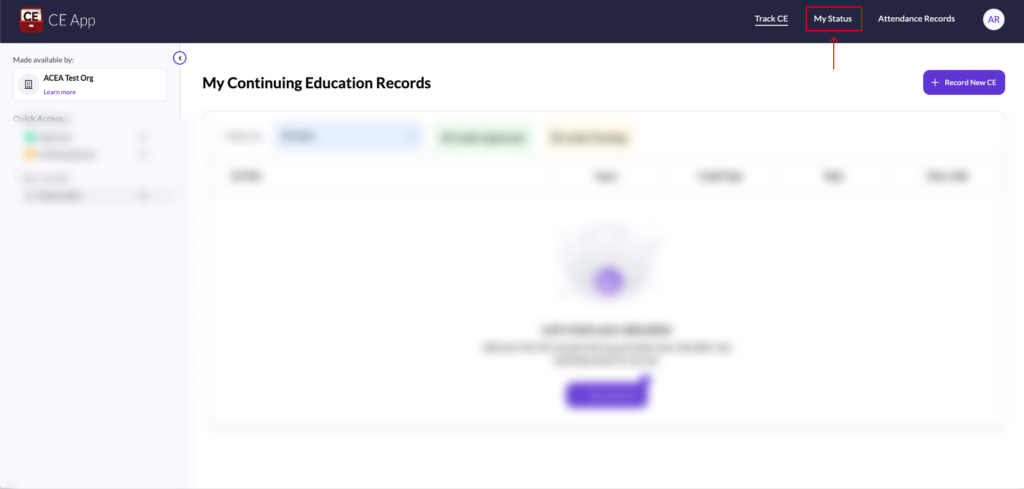
From the top navigation menu, click My Status. You’ll see your credentials on the left and your requirements listed on the right.
Option A: Browse all suggested courses
Step 2: Open the Suggested Courses tab
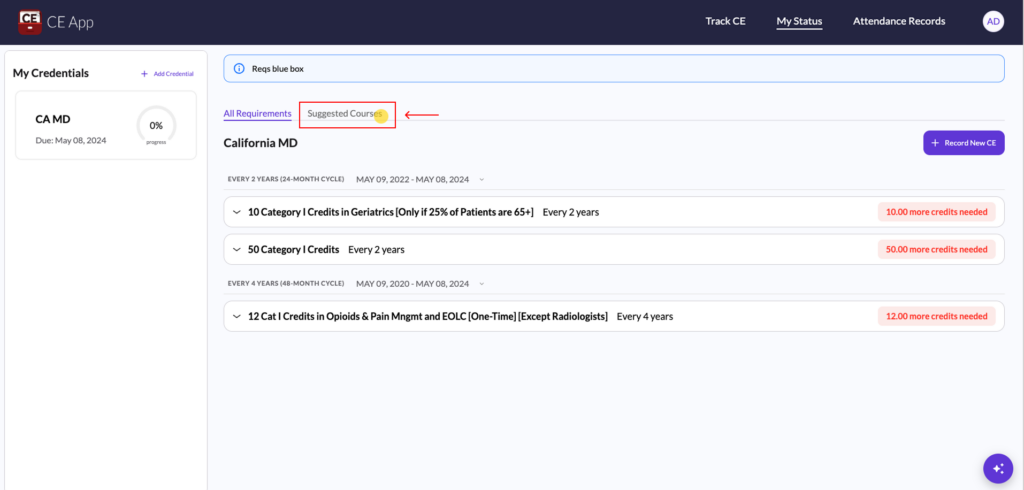
Near the top of the requirements section, click the Suggested Courses tab (next to All Requirements).
Step 3: Filter and search
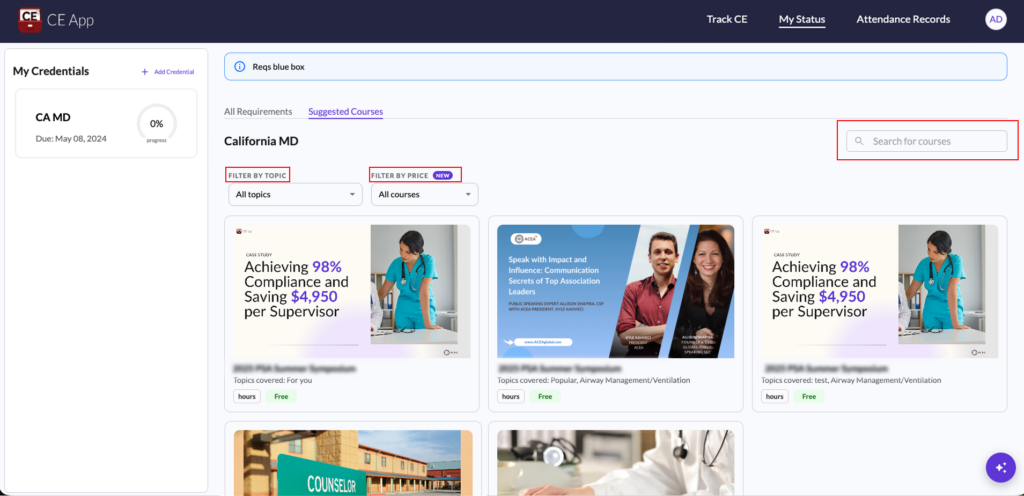
You’ll see all suggested courses for your credential. By default, the filters are set to All topics and All courses. You can narrow the list in a few ways:
- Filter by topic — click the dropdown to pick a specific topic (e.g. Airway Management/Ventilation, Domestic Violence, FL Laws & Rules).
- Filter by price — click the dropdown to choose Free or Paid.
- Search for courses — type a course name in the search bar on the right.
Option B: View courses for a specific requirement
Step 2: Expand a requirement
On the All Requirements tab, click a requirement to expand it.
Step 3: Open its Suggested Courses
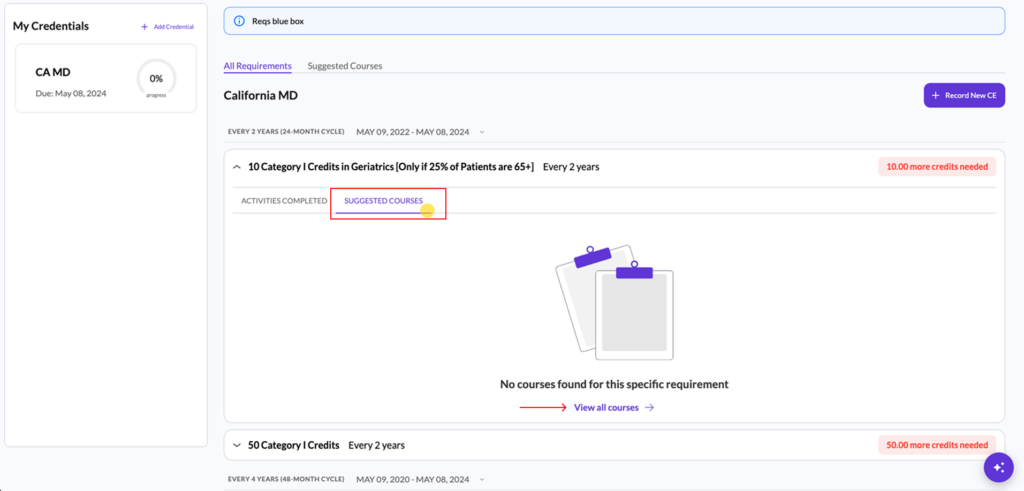
Inside the expanded requirement, click the Suggested Courses tab to see courses that count toward that specific requirement.
If no matching courses are available, you’ll see “No courses found for this specific requirement” along with a View all courses link that takes you to the full course list.
Step 4: Open a course
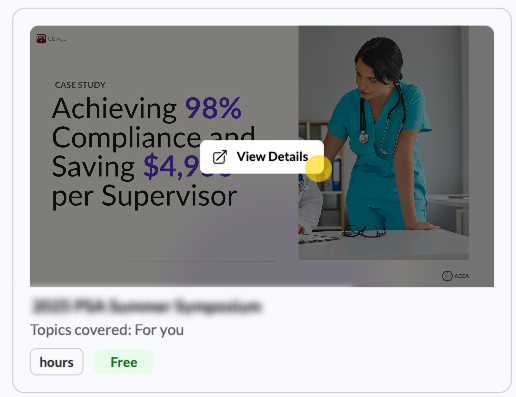
When you find a course you want to take, click on it and select View Details. This will redirect you to that course’s page.